YOU KNOW WHAT IS INTERNET

Understanding the Internet? Internet itself is derived from the word - (interconnectionnetworking), an entire global system of interconnected computer networks that use the standard Internet Protocol Suite ( TCP / IP ) to serve billions of users worldwide . When the Internet ( the letter 'I ' huge ) computer systems is common, since globally and using TCP / IP as the packet exchange protocol ( packet switching communication protocol ) . Internet is the largest series of so-called Internet . How to connect a series with Siwak is called internetworking .

while understanding the internet in terms of science , the Internet is a huge library of which there are millions ( even billions ) of information or data that can be text ,
graphics , animation and audio as well as others in the form of electronic media . Everyone can visit the library anytime and from anywhere , if viewed in terms of communication , the internet is a tool that is very effective and efficient to exchange information distance and short distance , such as in an office environment , where education , relevant agencies .

Increasing number of users access the internet is very reasonable once , now the internet is not only used as a means of communication or a means of finding information , but also has been used as a means to make money . Internet access tariff rates were now also cheaper when compared to a few years ago . and user access to the Internet is not just people who are in urban areas , people living in rural areas were also able to access the internet .
Continue Reading

QUICK WAY TO MAKE BOOTABLE WINDOWS 7

The fastest way to install windows 7 is from a bootable usb drive. You can cut the install time down to around 15 minutes compared with 30-40 via DVD if you use a fast drive.
 People still asking me to explain what is the best way to do this as many of the guides online are too complex, or require third party software which doesn’t always work as they supposed to.
 With this BootableUSB guide all you need to ensure is that your motherboard supports USB booting, and this is a common feature now for most of the computers.
 Today I am going to publish a step by step guide which works perfectly and doesn’t require any additional tools – I have been doing it for some time now to create bootable Windows install drives.
 You need to get hold of a fast USB 2.0 flash drive. It doesn’t need to be 32GB or bigger,however, all you need is a 4GB unit. The faster it is, the better.

 What you need:
– Windows 7 DVD install disc or ISO image
– USB Drive (4GB+ and as fast as you can get)
– Running Windows Operating system
– Working set of hands and eyes
– A few minutes of your life

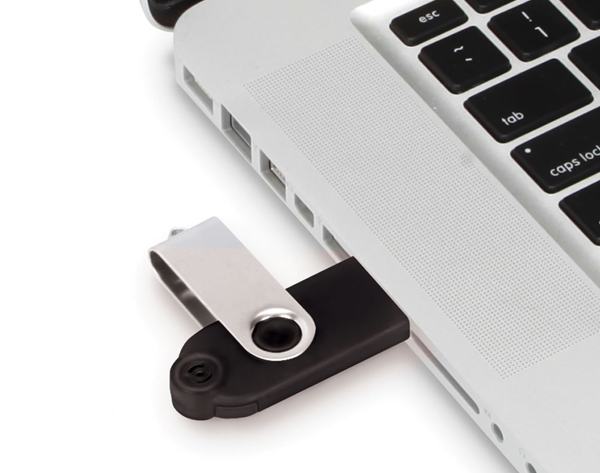
 Plug in your USB drive in the USB port:
 Usb Drive Plugged
 Before going any further, make sure you have removed any important files on your drive to a safe location, what we are about to do next is to erase the entire contents of the drive.
Insert your DVD of Windows 7 into the computer, but don’t start the normal install process.
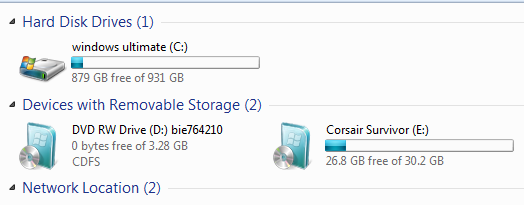
Open your ‘My Computer’ and make a note of the drive numbers of both the USB drive and the DVD drive with Windows 7 files on it.

 Usb And Computer Drives
 As you can see from the image above, the DVD drive is drive has letter D assigned and the USB drive is E.
Open the command prompt with admin rights. Type cmd in Start menu search box and hit Shift+Ctrl+Enter.
To keep things really easy, if you see text in upper case, it means this is what you type into the command prompt (you don’t need to type in upper case).

 cmd-prompt-usb-bootable
 Next type : 
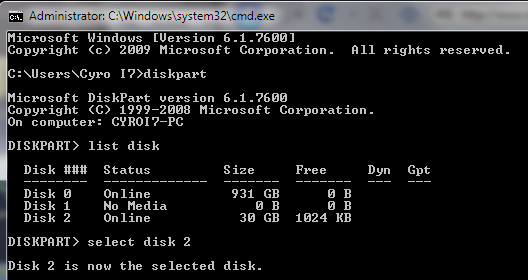
 DISKPART
 this loads the diskpart application we need to proceed
 Then type
 LIST DISK
 the image above shows our 32 GB USB drive is listed as DISK 2
 so you have to type
 SELECT DISK 2 (your USB Drive may have a different number, don’t follow exactly this text it depends on your usb drive)
 You will get a successful response “Disk 2 is now the selected disk”
 Clean Cmd USB Drive
 Next we want to clean the USB drive
 Type:
 CLEAN
 you will get a successful response ‘DiskPart succeeded in cleaning the disk”.
 Clean USB Drive
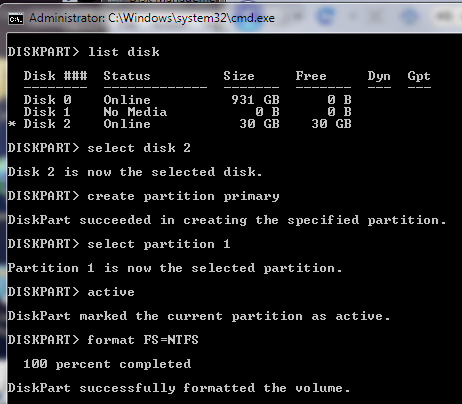
 After the drive is cleaned follow the list in the image above (detailed below in list order) – you can also note the successful text responses from the OS as you enter each command.
 SELECT DISK 2 (or what number your USB drive has)
 CREATE PARTITION PRIMARY
 SELECT PARTITION 1
 ACTIVE
 FORMAT FS=NTFS
 Formatting can take a little time depending on the size of the drive, our 32GB unit took about 10 minutes to format - you will see a percentage readout until it is finished.
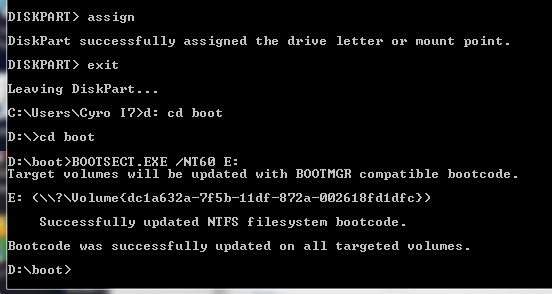
 Bootable USB Final Cmd Prompt
 Next type:
 ASSIGN
 EXIT (DISK PART will exit)
 Type D: CD BOOT (substitute the “D” if necessary with the letter of your Windows 7 DVD drive)
 then key
 CD BOOT
 then
 BOOTSECT.EXE /NT60 E: (substitute the “E” if necessary with the letter of your now ready USB drive) – we are telling the system to create a boot sector file on the USB drive.
 Now you can exit the command prompt and copy all the files on the Windows 7 DVD to the USB drive.
 Once this step is finished you’ll be ready to boot from this drive, all you need to do is configure your motherboard bios setup to boot first from USB rather than hard drive or optical drive. If you don’t know how to do this, refer to your specific motherboard manual or search the internet.
 Now, Windows 7 installation should take between 40% and 60% of the time it does from the DVD disc.
Continue Reading

The Function Of Computer Server

After I provide an understanding of an existing operating system on the server computer. Now it’s time to switch to a function or usefulness of the server itself. There are several functions that can be found on this server, among others, are as follows.
Application server
This server has the function to store a wide variety of applications that will be accessed by the client computer. For example, the central computer or server stores online application transaction that can later be used on the intranet or internet.
Proxy
Proxy server is a function of a meaningful set of network traffic with proxy settings. Many people are more familiar with the proxy server in order to connect between the client computer with the internet.
Database server
Provides access to the database is one of the most important functions of a computer server. A relational database storage structure information is compact and efficient, and allows quick access to large volumes of data.
In a business office setting, a database can be used to store the contact details of the customer and order information, as well as shipping and payment notes. By accessing the server via a local network, multiple employees can retrieve and update information from the database throughout the day as the business is conducted.
There are several popular database systems, including Oracle Database, Microsoft SQLServer and MySQL open-source database.
Printer server
Used to set the printer to work on a network. This is what causes the printer to be used by a wide variety of computers and are connected in a network.
Continue Reading

The Components Of computer Server

Components of the server computer consist of a wide variety of hardware together with regular components in the client computer. Nevertheless, the components on the server as well as a class have a much higher quality because it will function with many compositions. The following explanation will tell you what these components are.
Motherboard
The motherboard is a circuit board inside a computer with all the components in your computer be connected. This is the core of a computer that is referred to as ‘ mother ‘.
The main components on the motherboard including the processor (CPU), a circuit called the chipset, memory, expansion slots, IDE hard drive controllers, and input / output ( I / O ) ports for devices such as keyboard, mouse, and printer. Some motherboards also have additional features such as graphics adapters, SCSI disk controller, or network interface.
Processor
The processor, or CPU, is the brain of the computer. Although the processor is not the only component that affects the overall system performance, but this is the first component of people think of when they want to buy a computer server. Intel has four processor models are designed and used in the server computer :
Itanium 2 : a clock speed of 1.60GHz, the processor cores 1-2
Xeon : 1.83 – 2.33GHz clock speed, processor cores 1-4
Pentium D : 2.66 – 3.6GHz clock speed, 2 -core processor
Pentium 4 : 2.4 – 3.6GHz clock speed, 1 core processor
Memory
When you want to have a category of computer servers, then do not make too much savings. Many types of memory available, so you need to choose the right type of memory to match the memory supported by the motherboard. Total memory capacity of the server depends on the motherboard. Most new servers can support 12GB of memory, and some can support up to 32GB.
Hard drives
Most desktop computers use a cheap hard drive called IDE drives (sometimes also called ATA). The drive is enough for individual users, but because the performance is more important for a server, other types of drives are known as SCSI is typically used instead. For best performance, use SCSI drives with a SCSI controller card.
Recently, a new type of so-called cheap SATA drives has appeared on a desktop computer. SATA drives are also being tested continuously for computer servers.
The network connection
The network connection is one of the most important parts of any server. Many servers have a network adapter built into the motherboard. If your server is not equipped with it, you will need to add an adapter card for a separate network.
Power supply
Because the server usually has more devices than regular desktop computers, would require greater power (300 watts in general). If the server has a hard drive in smaller amounts, may require greater power.
Continue Reading

What is Computer server???


Have you ever heard the term of computer server?  Maybe once and not infrequently you’re wondering about the definition, usability, and its parts. Indeed, what is a server computer? It is a computer with a particular service on a network. This computer is like a parent who store and manage information, and distribute to other computers in order to be used together.

This type of computer is used either in the Internet or in an intranet network. In general, this computer will operate for 24 hours without stopping in order to provide maximum service to the users. It also has a working system has a server computer specs that are much different from the client computer. It must be great to many times to be able to provide long-term duration of service and quality remains.
Good specs certainly not just on the outside or the hardware, but the software is also included. This is evidenced through the operating system owned by the server with a special design. Some of them are as follows:
1. Microsoft Windows Server 2008
2. Sun Solaris
3. UNIX
4. Redhat Linux
Continue Reading

Quick way to Install Intel Processor


Start with your motherboard outside of your PC’s case, on a flat surface. Release the small metal lever holding the CPU retention bracket to Intel’s LGA socket in the motherboard. 


heatsinks 18 of 20
Now you can insert your chip. Make sure that you line up the two guiding notches on the socket with the notches along the edge of your chip. These notches are designed to prevent you from seating the CPU in the socket in an improper manner. With the chip seated in the socket, you can lower the retention bracket back into place. Make sure that you slip the notch at the end of the bracket around the single screw at the base of the socket before you use the metal lever to lock the CPU into place. 

heatsinks 20 of 20
When the CPU’s installed, it’s time to attach the cooler. If you’re using the stock Intel cooler there will already be thermal grease on the underside of the heatsink. If you’re using an aftermarket cooler, then you’ll need to apply a small rice-grain-sized dot of thermal grease—your cooler likely came with a small syringe of it—to the center of the CPU before you set the heatsink on top of it.
One of the nice things about Intel’s stock heatsink is that it uses push pins to attach itself to the motherboard. Simply place the cooler on top of your CPU and then press the push pins into the holes at each corner of the socket. Once the pins have been pushed through to the other side of the motherboard, press the black locking tab down into the mounting pin and twist it toward the center of the CPU, following the arrow engraved into the push pin, to lock the heatsink into place. 


heatsinks 16 of 20
The final step is to connect the fan header wire leading from your CPU to the CPU fan header on your motherboard. 

cpu fan install
Don't forget to connect the cooler's fan to your motherboard! 
For aftermarket coolers this process can be more complex and potentially involve custom heatsink retention brackets and mounting solutions. It’s best to follow the manufacturer’s instructions and refer to the relevant YouTube videos for guidance with those products.
Continue Reading

Definition of Cell Phone

Cellular telephone, sometimes called mobile telephone, is a type of short-wave analog or digital telecommunication in which a subscriber has a wireless connection from a mobile phone to a relatively nearby transmitter. The transmitter's span of coverage is called a cell. As the cellular telephone user moves 
Continue Reading